The publisher dashboard is available to users that have management rights to one or more publisher accounts on our platform. It provides the user interface for managing all podcast and stream content hosted on our platform.
The dashboard can be accessed by clicking on the "Publish" navigation item at the top of our website:

💡 If you do not see the "Publish" option on our website, ensure you are logged-in with the correct user account.
Dashboard structure
The dashboard displays the details of one publisher account at a time, but allows an option to "Switch" to a different publisher (for users that manage multiple publishers). The top dashboard bar shows the name and icon of the selected publisher account and allows editing the publisher options.

Sidebar items
Access to the different products and services are available under the account is provided via a sidebar.
Some items in this sidebar are are hidden until activated, for example the "Streaming / Archive" section becomes visible once the it has been enabled on the account.
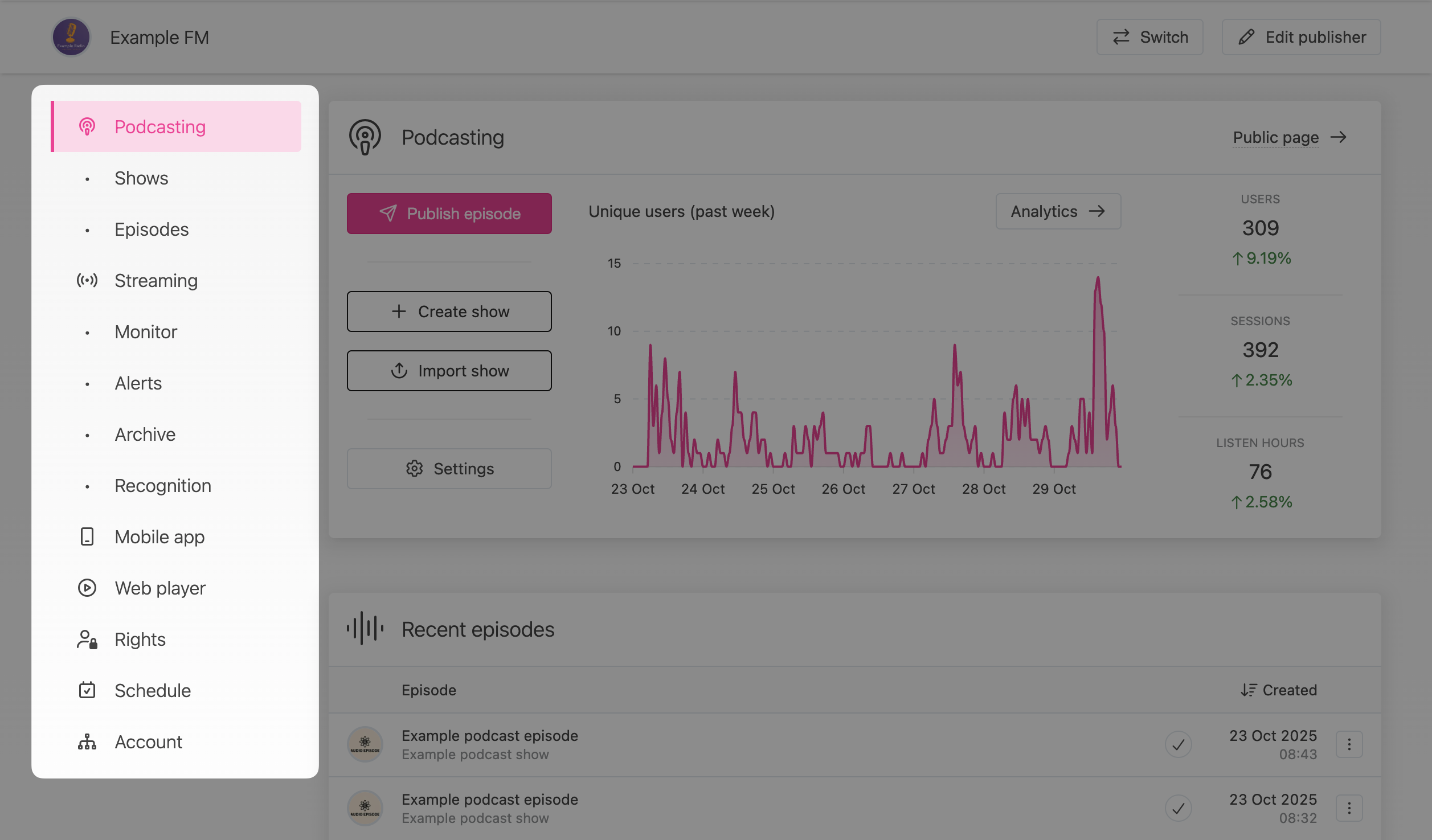
- Podcasting - Overview of podcasting functionality, including access to podcast settings, and creation of new shows and episodes.
- Podcasting / Shows - For managing podcasts shows.
- Podcasting / Episodes - For managing podcast episodes.
- Streaming - Overview of radio streaming functionality, including access to encoder settings and changing stream settings.
- Streaming / Monitor - To monitor uptime and volume of the contribution stream received by our platform.
- Streaming / Alerts - Manage how and where stream alerts are sent.
- Streaming / Archive - Access to the (optional) online stream archive.
- Streaming / Recognition - Access to the (optional) music recognition service.
- Web player - Manage the web player default theming and contents for the publisher.
- Rights - Manage users and access rights for the publisher account.
- Schedule - Configure an optional broadcasting schedule for your content.
- Account - Manage all account related settings, including changing product subscriptions and managing payment details.
Content display and filtering
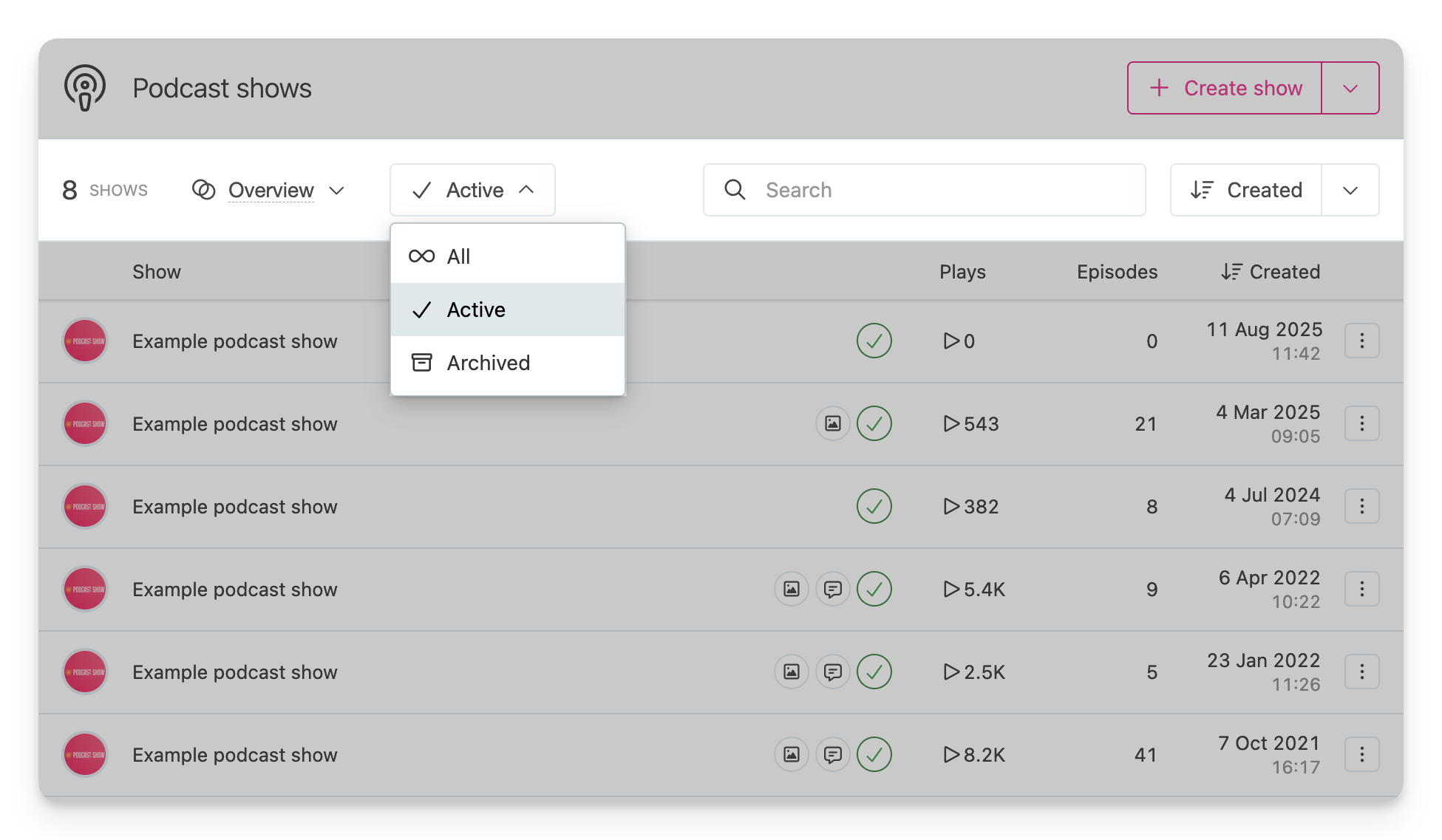
Most pages contain a table with a list of items. This might be a list of shows, episodes, rights, alerts or others, but they all expose very similar functionality:
- Above the content table are controls that can control the view, filtering and sort options of the contents in the table. For example user may choose to show only "Archived" episodes, or search for a specific name. These options are different based on the content being displayed.
- The content table shows the list of items available after the filtering and view options above have been applied. Each row contains an "actions" menu button, which provides all the actions that can be taken on that object. (These actions will be different based on the type of item, it's state and the rights of the user.)
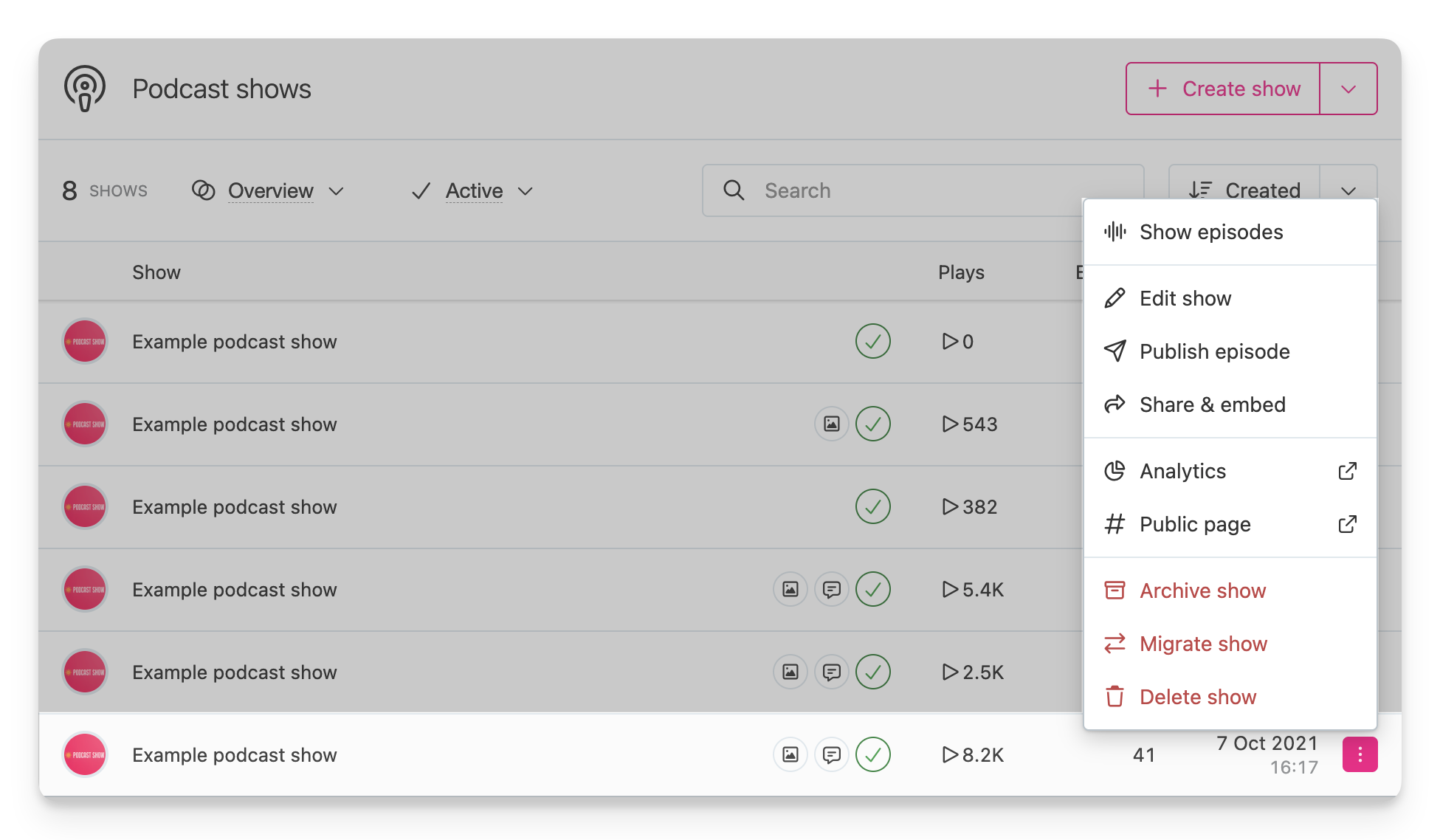
✨ Desktop users can also right-click anywhere on a row to open it's action dropdown menu.
Mobile support
The dashboard has some features that is only available to desktop users, but provides a fully functional experience on mobile, allowing content to be manage from a mobile handset.

👆 The sidebar is hidden on tablets or mobile displays but can be opened with a "hamburger" menu